Users: create an instructor, and assign them to a course
Instructors are users who lead courses
Their user permissions let them work with learners, and access learners' assignments and exams, and mark attendance for the sessions they instruct.
You set or edit an account's user type to instructor either manually or through the API. You can't create or edit user types through batch user import with a CSV file.
Change an existing user's type to instructor
When you use batch upload to create new users, their default user type is learner. After uploading your learners, you can edit individual users to change their user type.
When you change a user's type to instructor, you can add optional permissions to their instructor permissions. These options provide more access to course content and settings. The options are:
- Can create and edit courses: the instructor can change course content, or create new courses, as well as manage course settings.
- Can edit the settings in "Info" tab for courses they instruct?: the instructor cannot change course content, but can change how learners experience the course.
The
following screenshot shows the optional permissions for
instructors. In this example all permissions are turned on.
- From main navigation select Users > your user's name.
- On their name card select .. > Profile to reach the user's Info.
- From Info, select Settings.
- From Type of user, select Instructor.
- Optionally: enable or disable the following settings:
- Can create and edit courses
- Can edit the settings in "Info" tab for courses they instruct?
- Save to finish.
 Tip: in the learner's card, selecting the user type of Learner or Manager takes you straight to Settings.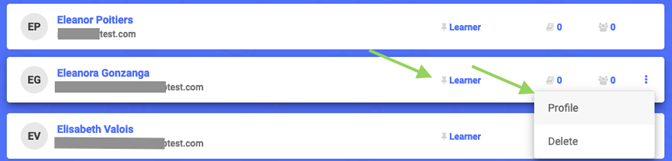
Add instructor permissions to a manager user type
See Managers: set permissions to manage groups about setting up manager with instructor permissions.
Assign an instructor to a course
You assign instructors to a course from the Course settings.
An instructor assigned to a course:
- receives all the messages that a learner sends through the Message the Instructor feature
- receives all the learner assignments
A course can have multiple instructors. If you do not assign specific instructors to learners when you set up the course, learners can choose their instructor, when they submit their assignments.
- From the main navigation menu select Courses > your course name.
- From the secondary navigation select Instructors.
- From the action menu select Assign Instructors.
- From the Assign Instructors dialog, select names of instructors to add to the course, and select Assign to finish.
Assign learners on a course to an instructor
To assign learners to a specific instructor, you need to first assign the instructor to the course.
- From the main navigation menu select Courses > your course name.
- From the secondary navigation select Instructors.
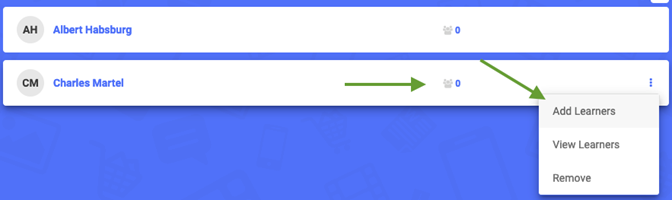
- In the instructor's card, select the Assigned Learners figure.
- From the action menu select Add Learners.
- From the dialog, enter the first few letters of learners' names to find and select them. Select Add to finish.
The following screenshot shows 2 instructor names, and the position of the Assigned Learners figure.