Users: the basic profile
Intended Audience: Administrators, Managers
Summary
Learn what features and options are available to an admin (and manager if permissions are granted by admin), from an individual user's profile.
Access permissions
Admins for a portal can access all the user profiles
within their portal. Only admins can access user type settings in a user profile, and
change a user's type: for example, from a learner to a manager.
A manager can't create new managers, instructors or
admins.
Managers can access the user profiles of learners
who belong to the manager's group.
Instructors can't access their learners' user
profiles.
Learners can access their own user profiles.
Access a user's profile
- From main navigation go to Users, to view all users in the portal.
- Use secondary search to find an individual user by name, email, or username, as required.
- Select an individual user's name to open their profile.

Tip: The user’s profile is also available from More (3-dot menu) > Profile.
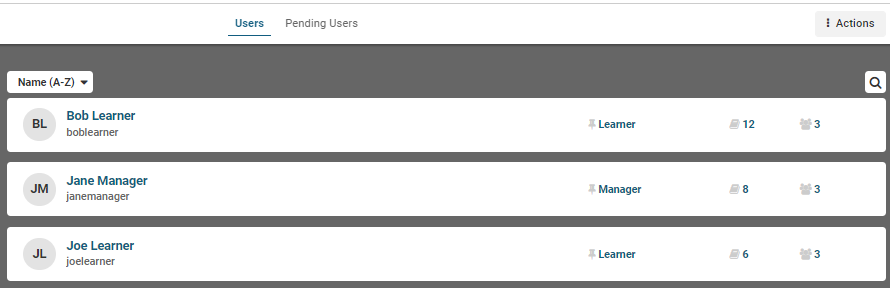
The following screenshot shows a sample of the default view of Users:
- the user's type appears in this view, one of Learner, Manager, Instructor, Admin
- the number next to the book icon refers to the user's number of course enrollments
- the number next to the people icon refers to the user's number of group assignments
Profile view, in detail
The following screenshot shows an example of a user's profile.
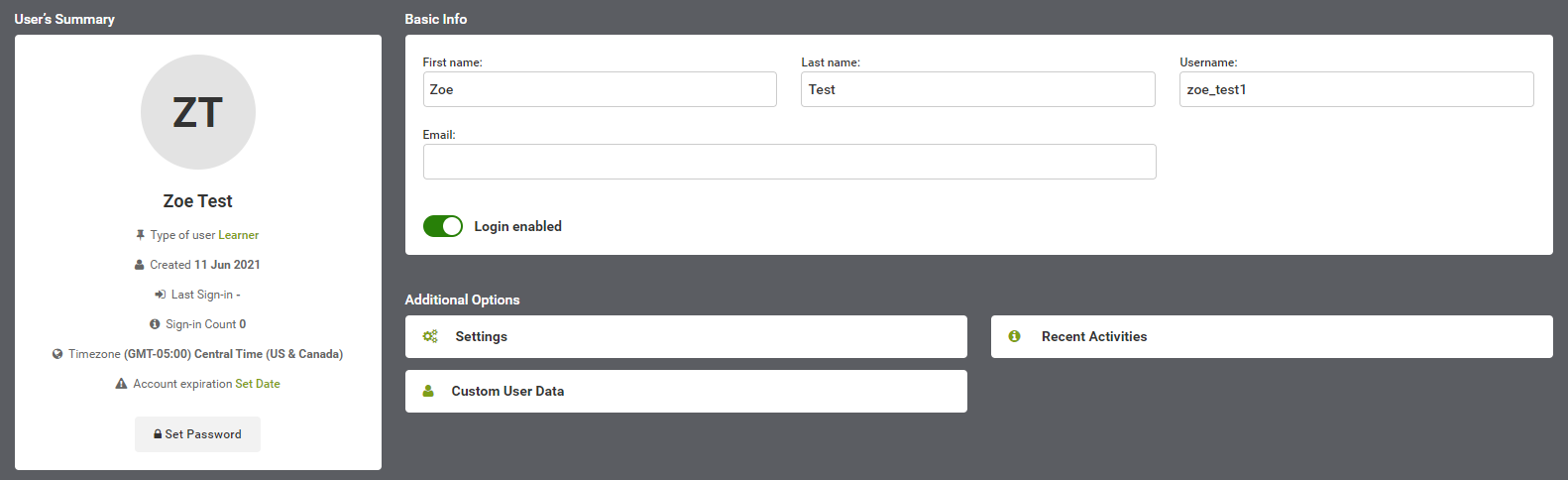
From User's Summary you can:
- review and change the user's type (admin access only)
- deactivate the learner's 2-factor authentication, if they are locked out of their account
- enable or disable the account
- set an expiry date for the account, after which the user cannot log in
- set or reset the user's password
 Warning: we do not recommend permanently deleting a
user’s account because all training history for the user will be deleted!
Warning: we do not recommend permanently deleting a
user’s account because all training history for the user will be deleted!From Settings, Admins can access the user's type, and change it.
From Custom User Data, you can view and edit the user's custom user data.
From Recent Activities, you can view the individual user's activities in Safety Made Simple including:
- logging in and logging out
- course enrollments
- course launches
- exams and surveys
- levels and badges